Automate a Weekend Shutdown
Development and staging workspaces often run compute 24/7 that is only used during business hours. This tutorial sets up Kostavo to stop that compute automatically outside working hours, while guaranteeing it never touches anything while your team is working.
The setup has two halves:
- A profile in Fix mode that stops idle and running compute
- A schedule that blocks those actions during business hours
Key point: schedules block actions, not scans. Kostavo keeps detecting and recording findings around the clock. The schedule only decides when Fix and Remove are allowed to act. During business hours you get visibility; outside them you get enforcement.
Prerequisites
- Admin or Owner role
- At least one non-production workspace connected and assigned a profile
Step 1: Create a Cost Profile in Fix Mode
- Go to Policies and create a profile from the Cost Optimization template
- Name it, for example
Off-hours cost sweep - Set the key policies to Fix:
running_compute: terminate running clusterswarehouse_running: stop running SQL warehousescluster_no_autotermination: set an auto-termination threshold
- Save
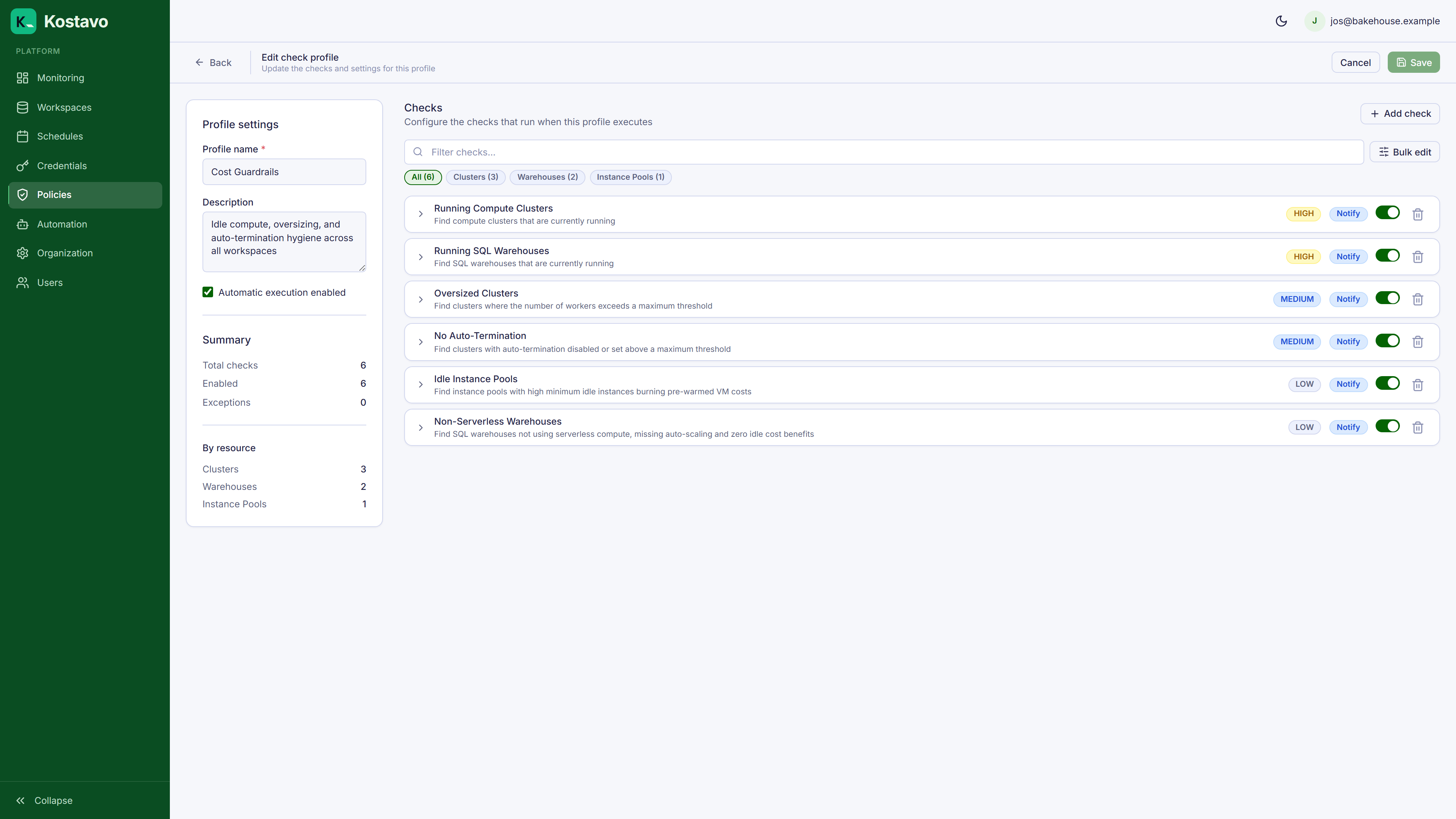
Policies you leave in Notify mode still report, they just never act. Use that for anything you want to watch before automating. The full list of policies and what Fix does for each is in the policy catalog.
Step 2: Add Exceptions
Some compute legitimately runs around the clock. Exclude it now, before the first weekend:
- In the profile editor, open the exception list on
running_compute - Add the clusters that must survive: streaming ingest, 24/7 serving, shared infrastructure
- Save
If you skip this step, you will be doing it Monday morning instead.
Step 3: Create the Business Hours Schedule
- Go to Schedules and click New schedule

- Pick the Block Business Hours template

- Adjust to your team's reality: days Monday through Friday, hours 08:00 to 18:00, your team's timezone
- Save
While this schedule is active, Fix and Remove are suppressed. Outside it (evenings and weekends), they run.
Date Overrides
Schedules support per-date exceptions:
- Excluded dates: force the schedule inactive on a specific date. Use for company holidays, so cleanup runs even though it is a Tuesday.
- Included dates: force it active. Use for that one Saturday the team is doing a release.
Step 4: Assign Profile and Schedule Together
- Go to Policies → Assignments
- Create an assignment for each non-production workspace: the
Off-hours cost sweepprofile plus the business hours schedule - Enable it
For many workspaces, skip the manual clicking and use a tag rule: match environment equals development or staging, assign this profile and schedule automatically. The tag automation guide shows that pattern.
Step 5: Check the Results Monday
After the first weekend, open Monitoring → Findings and filter by your profile:

Look at the Action taken column: FIXED entries are clusters and warehouses Kostavo stopped. The execution history on each finding shows exactly when.
Tuning
| Observation | Adjustment |
|---|---|
| Something was stopped that should not have been | Add it to the exception list |
| Users restart clusters and they get stopped again | Working as intended; a restarted cluster that goes idle again is stopped again |
| Nothing was stopped | Confirm the profile is in Fix mode, the assignment is enabled, and the schedule was not active all weekend |
Related
- Concept: Schedules for windows, timezones, and overrides in depth
- Reference: Action modes for what Fix does per policy
- Guide: Automate assignments with tags to roll this out via tags instead of manual assignments